Table of Contents
Inventory Stocking Guide
I. Place an Order on LooperBuy
Step 1
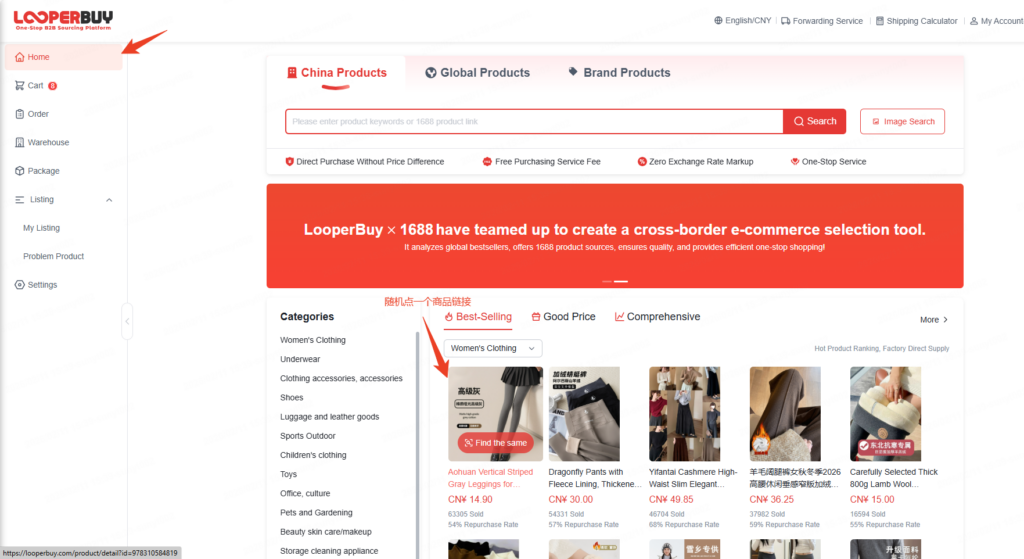
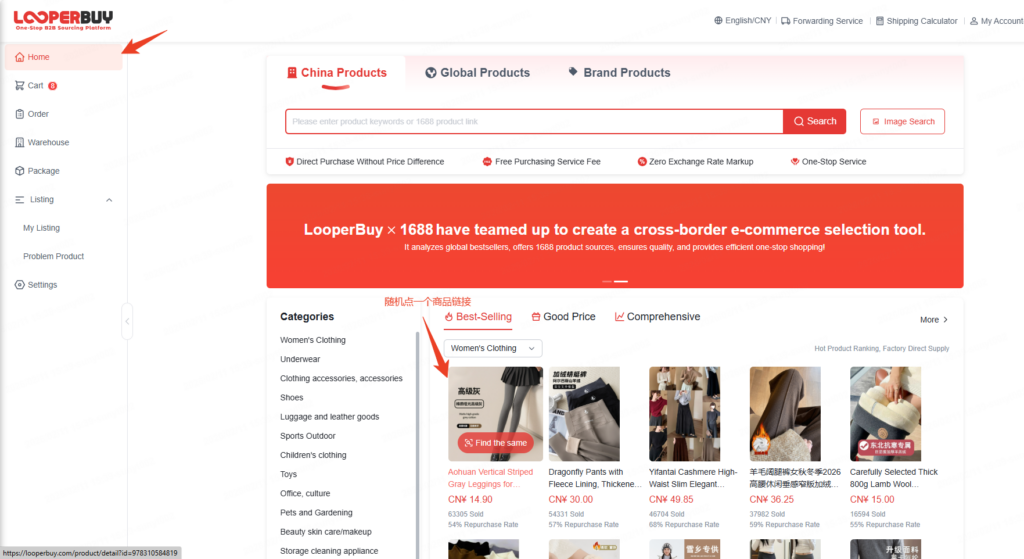
Go to the LooperBuy homepage and click on any product link.
Step 2
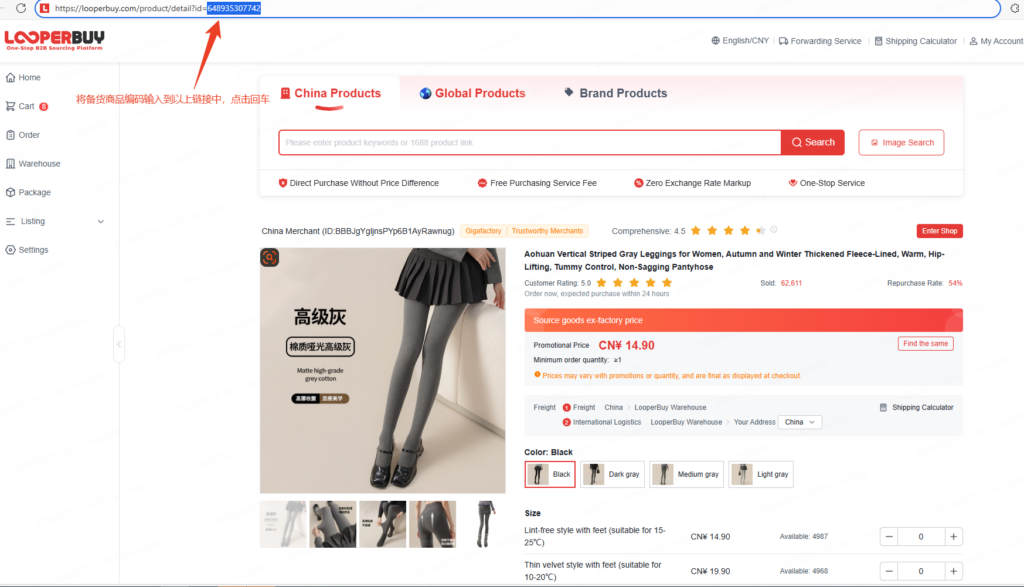
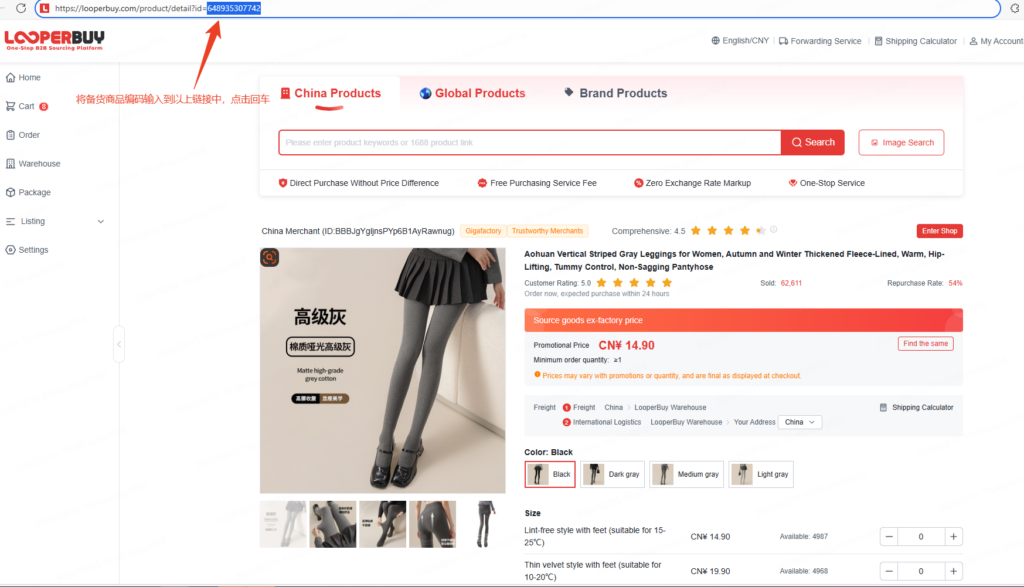
Enter the stocking product ID into the product link, then press Enter.
The page will redirect to the corresponding stocking product.
Step 3
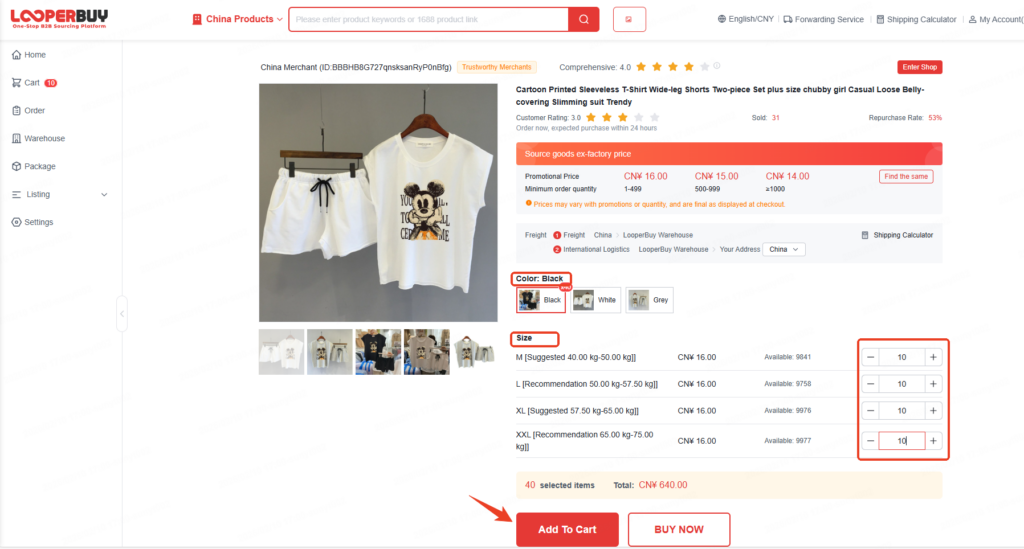
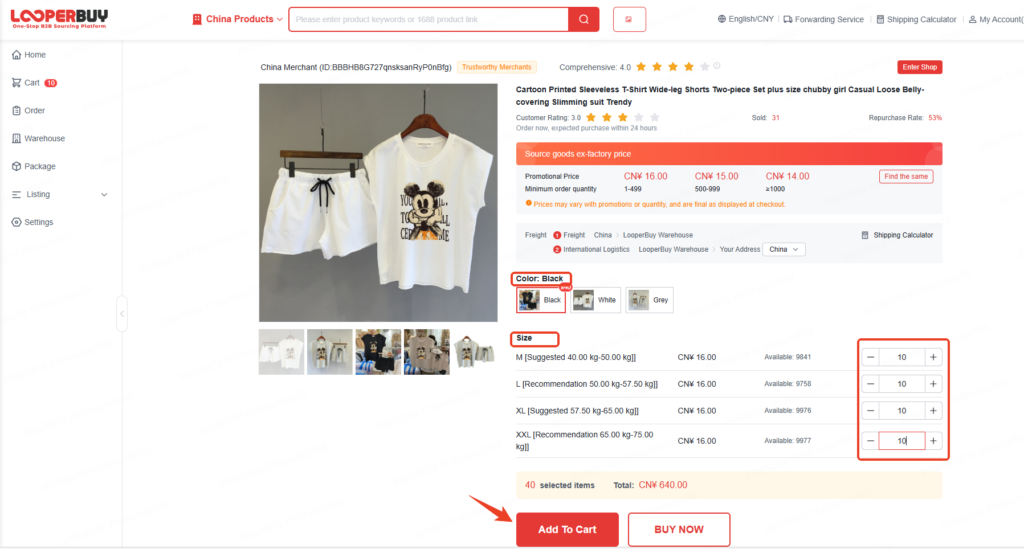
Select the required color, size, model, and quantity.
Click Add to Cart or Buy Now.
If you need multiple variations (e.g., different colors or sizes) of the same product, it is recommended to add them to the cart first and complete the payment together.
Step 4
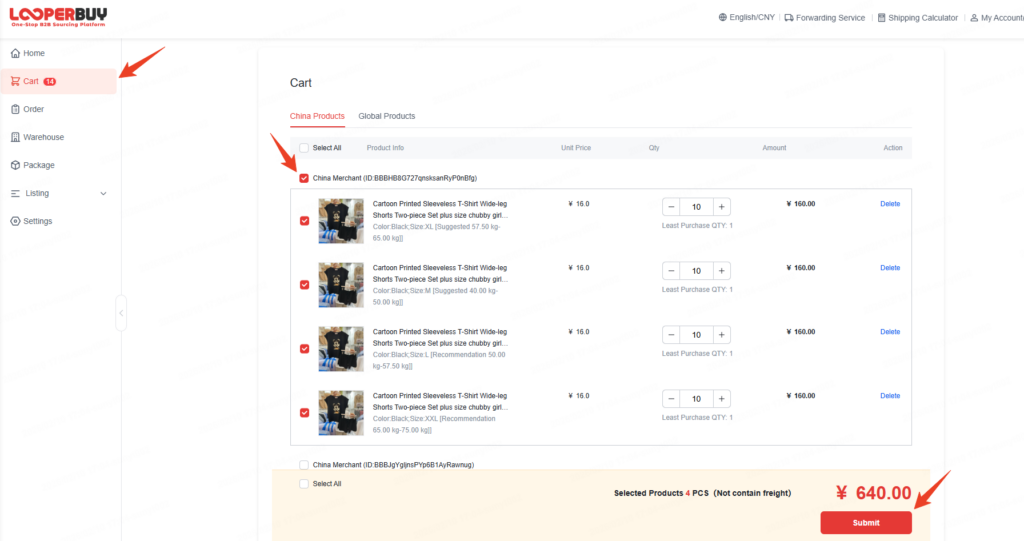
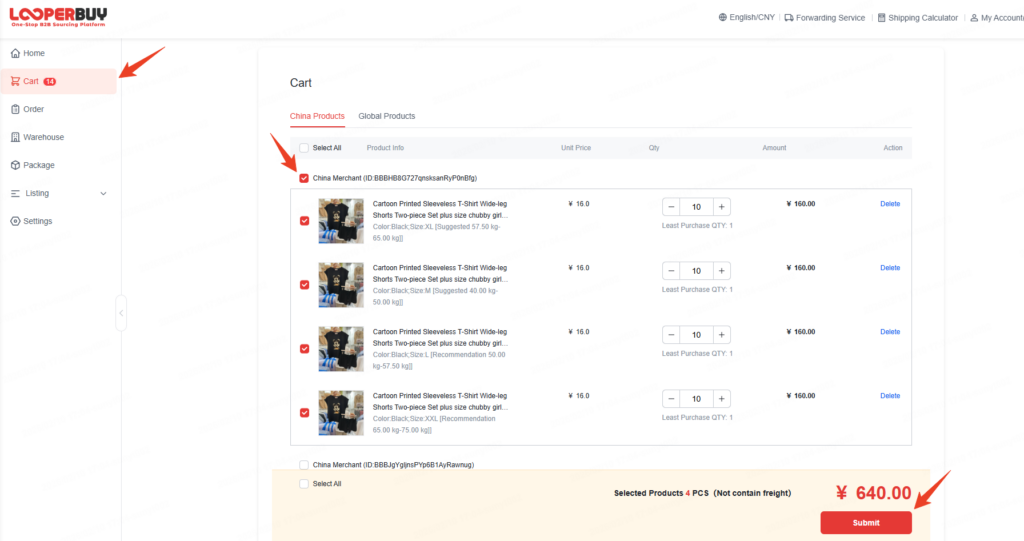
In the cart, select the items you want to purchase and click Submit.
Step 5
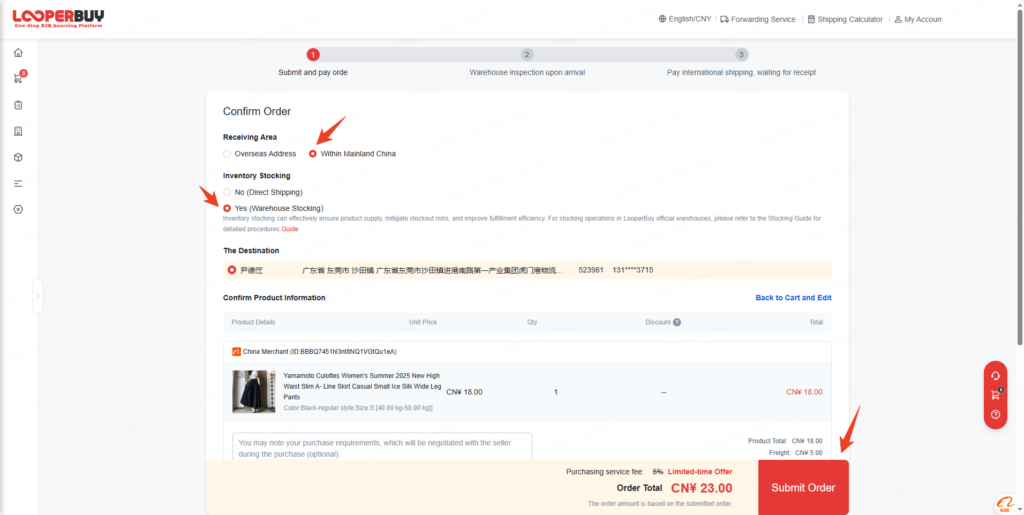
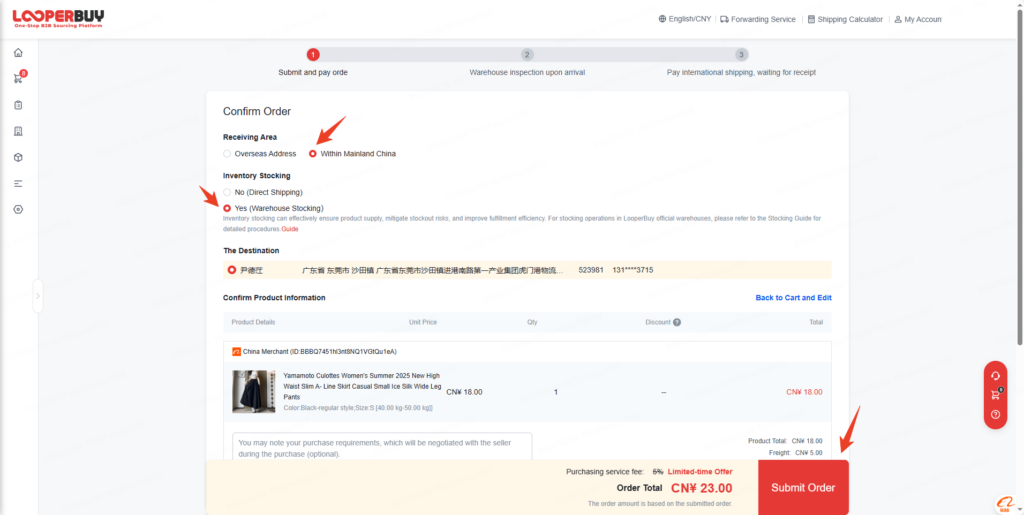
On the order confirmation page:
- Set Receiving Area to China
- Set Inventory Stocking to Yes
Then click Submit Order in the bottom-right corner.
(The receiving address is fixed and does not require any changes.)
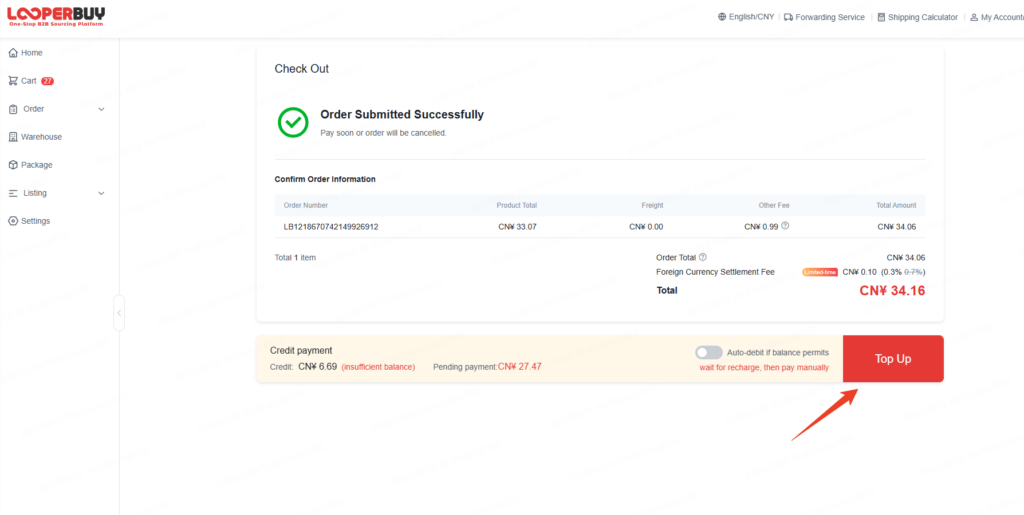
Step 6
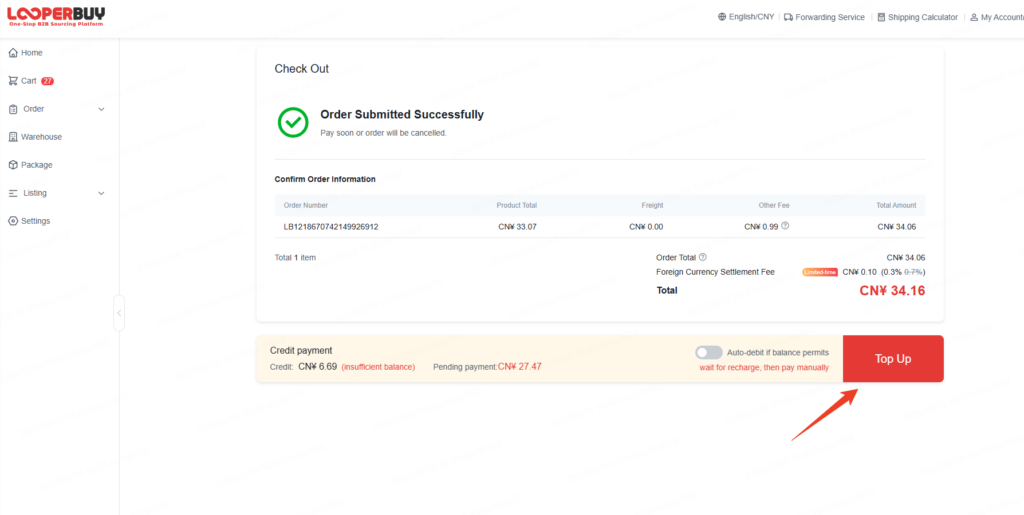
On the payment page, click Pay to complete the payment.
II. Same Product Mapping
- If the stocking product SKU is the same as the listing SKU, no mapping is required.
- If the stocking product SKU is different from the listing SKU, you need to complete product mapping on the LooperBuy Listing page.
After mapping
- Sales orders generated by the platform will prioritize shipping from stocked inventory.
- If inventory is insufficient, real-time procurement will be automatically triggered.
Inventory Alert Rule
The current inventory alert threshold is 10% of the stocked quantity.
Example:
If 100 units are stocked, an alert will be triggered when inventory drops to 10 units.
After the alert is triggered, new sales orders will automatically switch to real-time procurement instead of using stocked inventory.
Same Product Mapping Steps
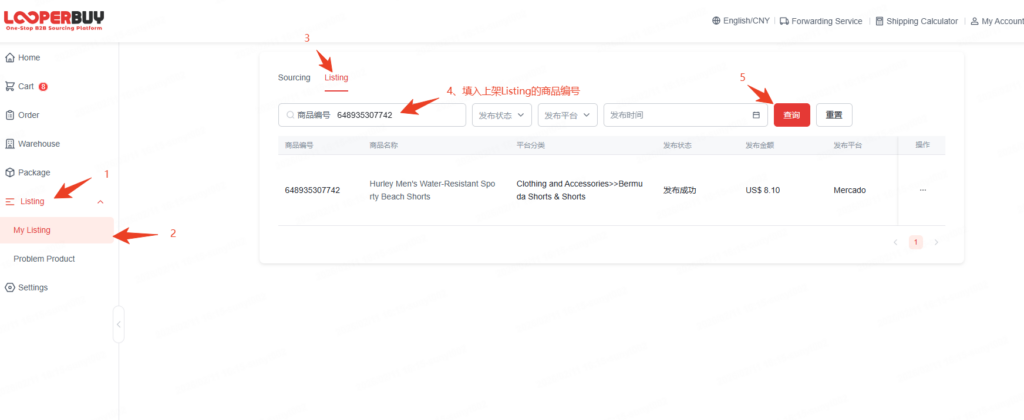
Step 1
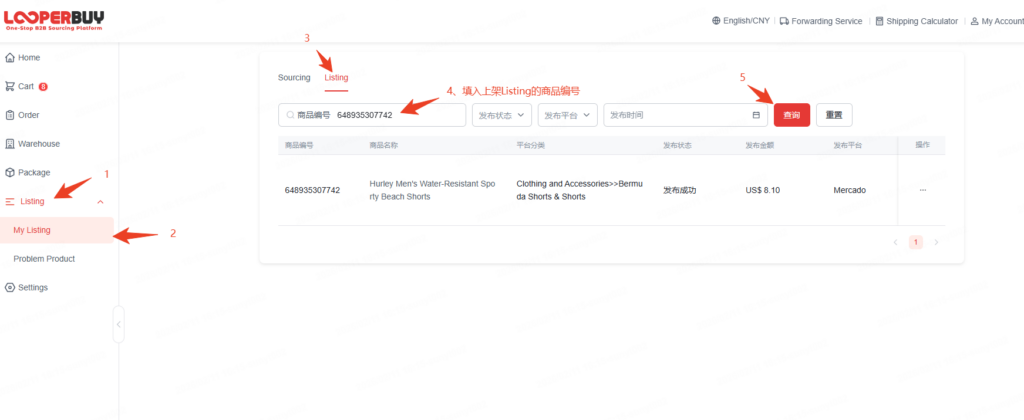
Go to LooperBuy → Listing Page → My Listing → Listing.
Enter the listing product ID (the numeric part before the SKU) and click Search.
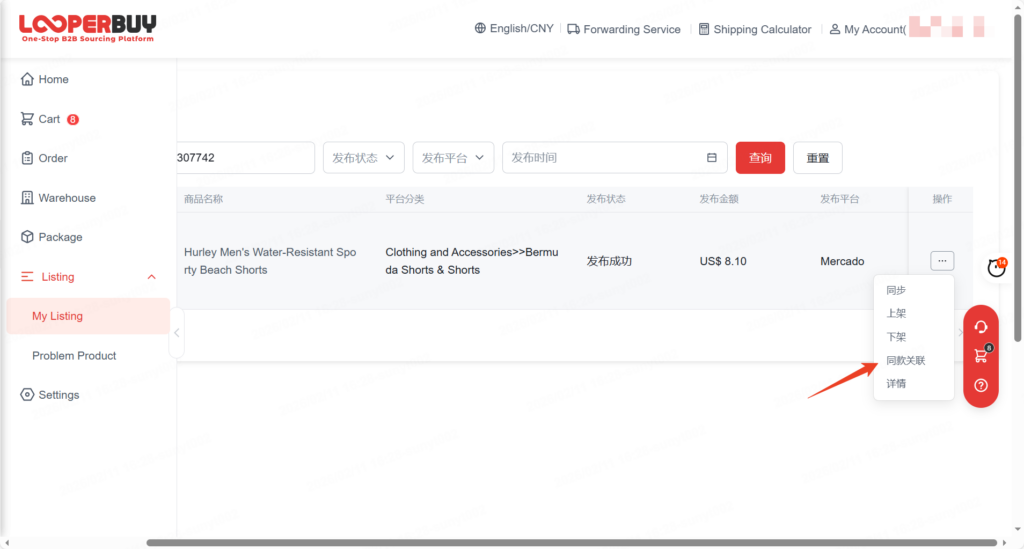
Step 2
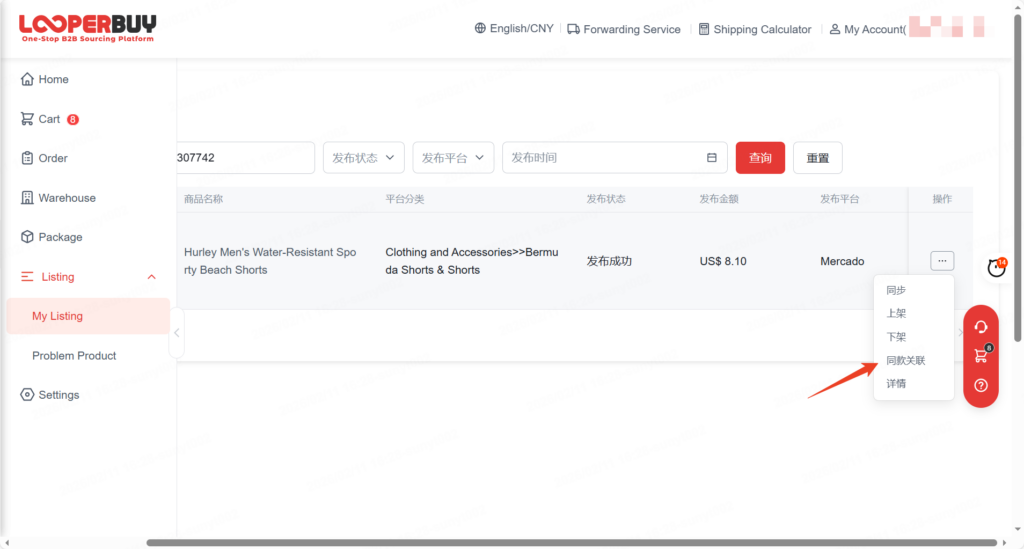
Find the corresponding listing, then click the three dots under Actions on the right side.
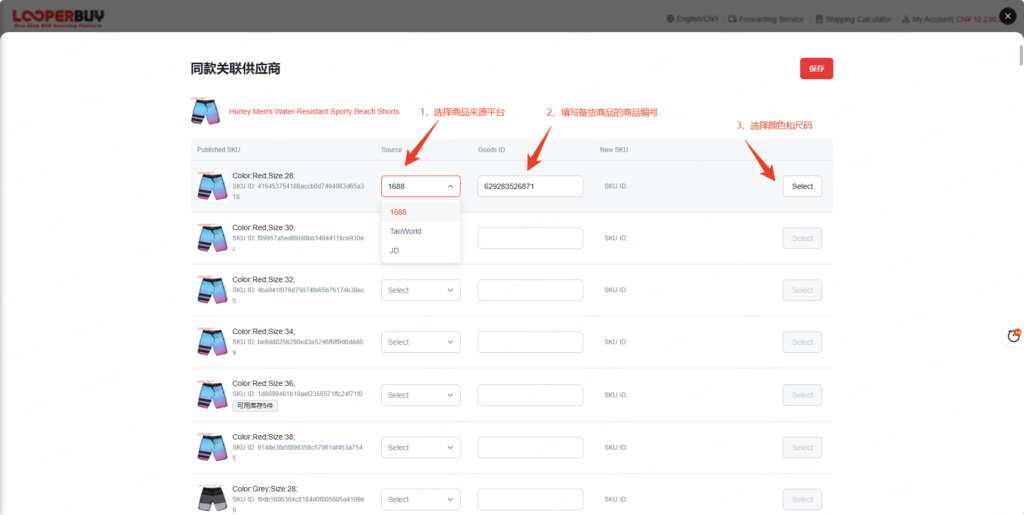
Step 3
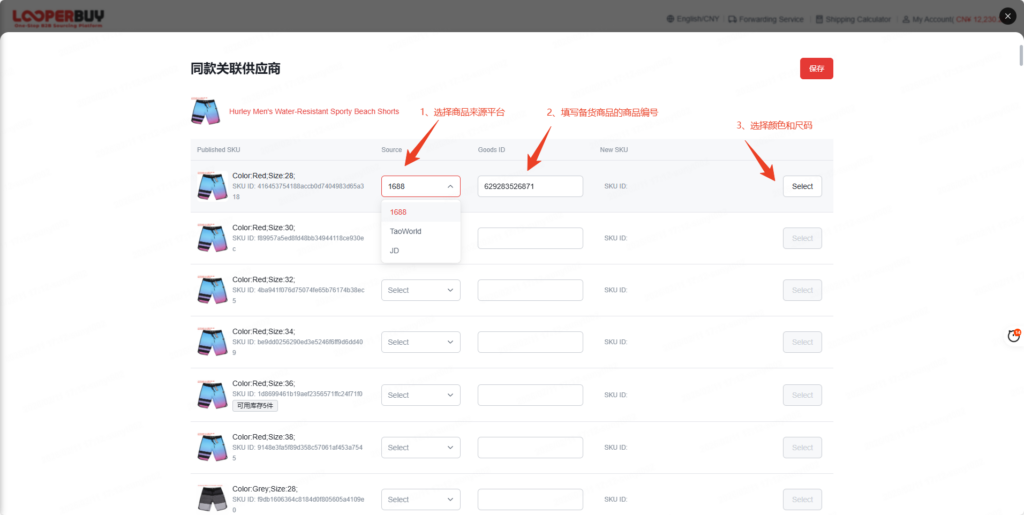
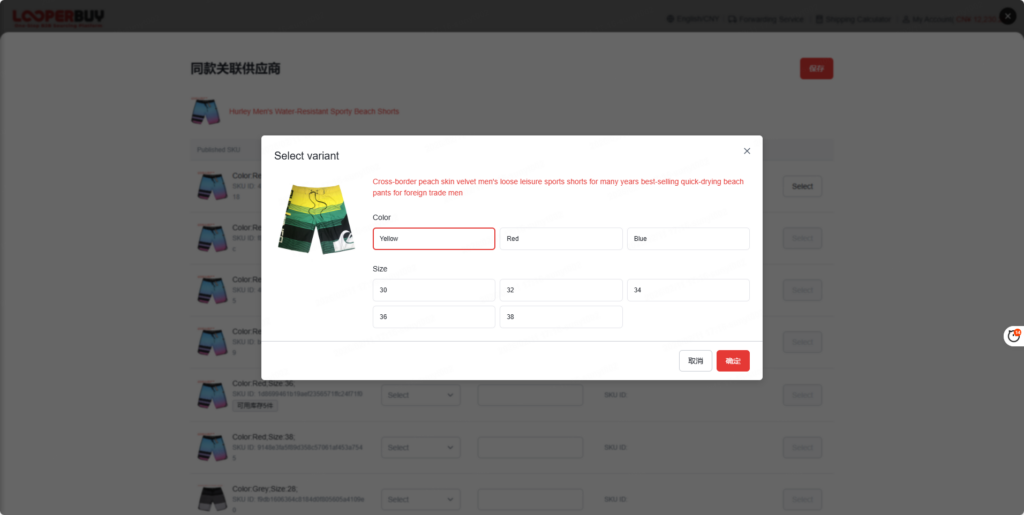
Click Source, select the sourcing platform, and enter the stocking product ID in the Goods ID field.
Then click Select to choose the color and size.
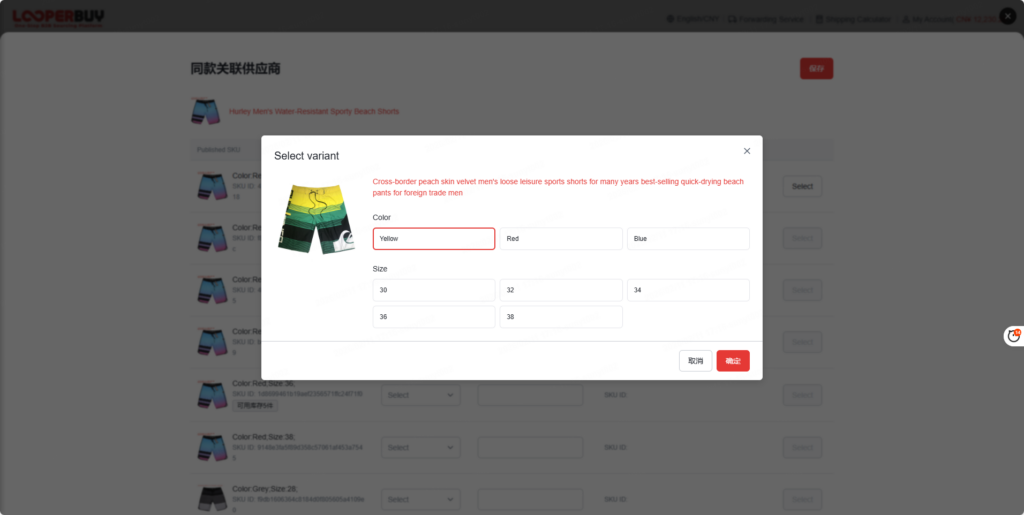
Step 4
Match the color and size of the listing with the corresponding stocking product.
Click Confirm, then click Save.
If one SKU includes multiple colors and sizes, complete the mapping one by one for each variation.
III. Inventory Check
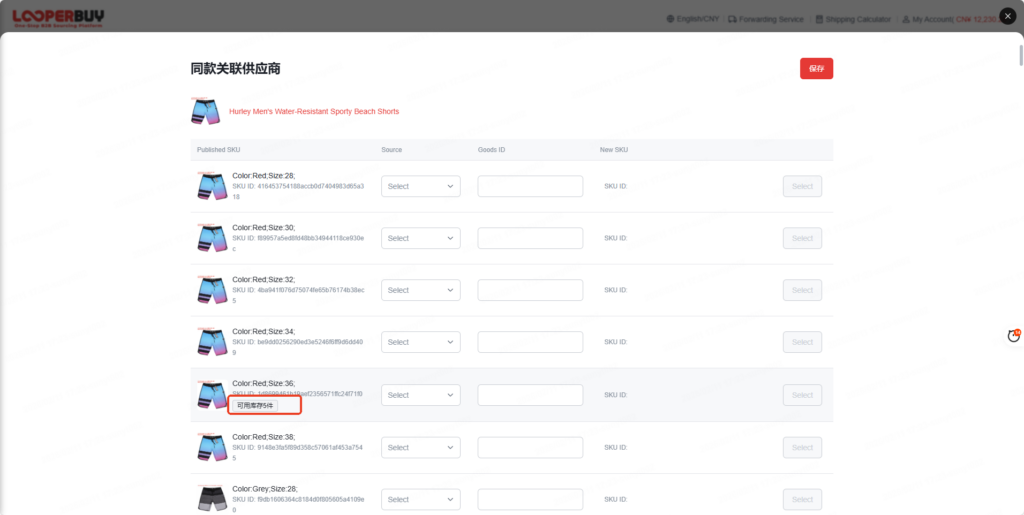
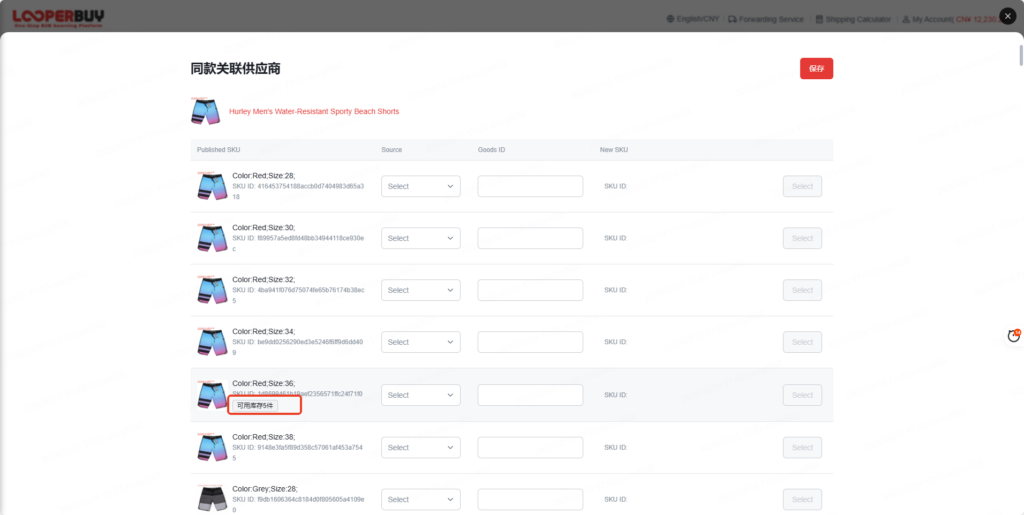
On the product mapping page, you can view the available inventory of the stocked product under the corresponding listing.
备货指引
一、LooperBuy 下单
步骤一
打开 LooperBuy 首页,随机点击一个商品链接。
步骤二
将备货商品编号输入到商品链接中,点击回车,页面将跳转到对应备货商品界面。
步骤三
选择需要采购的颜色、尺码、型号、数量,点击加入购物车或直接购买。
同款商品需要采购多种颜色或尺码的,建议先加入购物车后统一支付。
步骤四
在购物车中勾选需要采购的商品,点击提交。
步骤五
在订单确认页:
- Receiving Area(收货地区) 选择 China(中国)
- Inventory Stocking(备货) 选择 Yes
点击右下角提交订单。
(收件地址为固定地址,无需做任何改动)
步骤六
在支付页面点击付款,完成支付。
二、同款关联
- 备货商品 SKU 与上架 Listing SKU 相同时,无需进行同款关联操作。
- 备货商品 SKU 与上架 Listing SKU 不同时,需在 LooperBuy Listing 页面完成同款关联。
关联后规则
- 平台产生的销售订单将优先使用备货库存发货。
- 库存不足时,自动触发实时采购。
库存预警规则
当前库存预警阈值为备货商品入库数量的 10%。
示例:
备货商品入库 100 件,当库存剩余 10 件时触发预警。
预警后产生的新销售订单将自动转为实时采购,不再使用备货库存。
同款关联操作步骤
步骤一
进入 LooperBuy →【Listing 页面】→ My Listing → Listing。
填入上架 Listing 的商品编号(SKU 前面的数字部分),点击查询。
步骤二
查询到对应 Listing 后,点击页面右侧操作下方的三个点。
步骤三
点击 Source,选择采购商品来源平台,在 Goods ID 栏填写备货商品编号。
点击 Select 选择颜色和尺码。
步骤四
根据上架 Listing 的颜色、尺码,匹配对应备货商品的颜色、尺码。
点击确定,最后点击保存。
若一个 SKU 包含多个颜色和尺码,需按颜色、尺码逐一完成同款关联。
三、库存查看
在商品关联页面,可查看对应 Listing 下备货商品的可用库存。