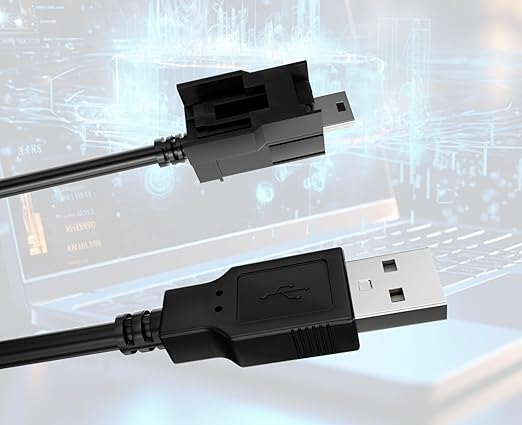
Transferring data between devices has become an essential part of our digital lives. With the increasing need for quick and efficient data transfer methods, USB cables have emerged as a popular choice. This article explores the various aspects of using USB cables for data transfer, including their types, advantages, and the process involved. Understanding these elements can help users make informed decisions about their data transfer needs and optimize their use of technology.
Table of Contents
Understanding USB Cables
What is a USB Cable?
A USB (Universal Serial Bus) cable is a standard cable used to connect computers and other devices for data transfer and power supply. USB cables come in various types, including USB-A, USB-B, USB-C, and Micro USB, each serving different purposes and devices. The versatility of USB cables makes them a staple in both personal and professional settings, allowing users to connect a wide range of devices, from printers to smartphones. This adaptability is one of the reasons why USB technology has become ubiquitous in the tech world.
Types of USB Cables
USB cables are categorized based on their connectors and capabilities. The most common types include:
– USB-A: The standard rectangular connector found on most computers and chargers. It is widely recognized and used for connecting various peripherals.
– USB-B: Typically used for printers and other large devices. This type of connector is often found on devices that require a stable connection for data transfer.
– USB-C: A newer, reversible connector that supports faster data transfer and charging. Its design allows for easy connection without worrying about orientation, making it user-friendly.
– Micro USB: Commonly used for smartphones and smaller devices. Although it is gradually being replaced by USB-C, it remains prevalent in many older devices.
Understanding these types is crucial for selecting the right cable for your data transfer needs. Each type has its unique features and benefits, catering to different devices and user requirements.
Advantages of Using USB Cables for Data Transfer
Speed and Efficiency
USB cables offer high-speed data transfer rates, especially with USB 3.0 and USB-C connections. These cables can transfer large files in a matter of seconds, making them ideal for users who need to move data quickly. For instance, transferring a full-length movie or a large software package can be accomplished in just a few minutes, significantly reducing downtime and increasing productivity. The efficiency of USB cables is particularly beneficial in professional environments where time is of the essence.
Direct Connection
Using a USB cable allows for a direct connection between devices, eliminating the need for internet access or cloud services. This is particularly beneficial in environments with limited connectivity, such as remote locations or during travel. A direct connection also enhances security, as data is transferred locally without the risk of interception that can occur with online transfers. This aspect is crucial for businesses that handle sensitive information and require secure data transfer methods.
Compatibility
Most modern devices support USB connections, making it easy to transfer data between different types of devices, such as computers, smartphones, and tablets. This compatibility extends to various operating systems, including Windows, macOS, and Linux, allowing users to connect devices seamlessly. The widespread adoption of USB technology means that users can rely on a single type of cable for multiple devices, simplifying their tech setup and reducing clutter.
How to Transfer Data Using a USB Cable
Preparing for Data Transfer
Before starting the data transfer process, ensure that both devices are powered on and that you have the appropriate USB cable. If you are transferring data between two computers, you may need a USB bridge cable, which is specifically designed for this purpose. Additionally, it is advisable to check for any software updates on both devices to ensure compatibility and optimal performance during the transfer.
Connecting the Devices
1. Plug in the USB Cable: Connect one end of the USB cable to the first device and the other end to the second device. Ensure that the connections are secure to avoid interruptions during the transfer.
2. Install Necessary Software: Some USB transfer cables come with software that needs to be installed on both devices. Follow the instructions provided with the cable. This software can facilitate the transfer process, providing a user-friendly interface and additional features such as file management.

Initiating the Transfer
Once the devices are connected and any necessary software is installed, you can begin transferring data. This process may vary depending on the operating system of the devices involved.
– For Windows: Open the file explorer, select the files you want to transfer, and drag them to the connected device. Windows provides a straightforward interface for file management, making it easy to locate and transfer files.
– For Mac: Use the Finder to locate the files and drag them to the desired location on the other device. macOS also offers features like AirDrop for wireless transfers, but using a USB cable can be more reliable in certain situations.
Completing the Transfer
After the files have been transferred, safely eject the USB cable from both devices to prevent data corruption. This step is crucial to ensure that all files are properly saved and that the devices are disconnected safely. Ignoring this step can lead to incomplete transfers or data loss, so it is essential to follow the proper procedure.
Common Issues and Troubleshooting
Connection Problems
If the devices do not recognize each other, check the following:
– Ensure that the USB cable is securely connected. A loose connection can prevent data transfer and cause frustration.
– Verify that the correct drivers are installed on both devices. Outdated or missing drivers can lead to compatibility issues.
– Try using a different USB port or cable if the issue persists. Sometimes, the problem may lie with a faulty port or cable, and switching to another can resolve the issue.
Slow Transfer Speeds
If you experience slow transfer speeds, consider the following:
– Ensure that both devices support the same USB version (e.g., USB 3.0). Using a USB 2.0 cable with a USB 3.0 port will limit the transfer speed to the lower standard.
– Close any unnecessary applications that may be using system resources. Background processes can slow down the transfer speed, so it is advisable to minimize active applications during the transfer.
Conclusion
USB cables are a reliable and efficient method for transferring data between devices. Their speed, compatibility, and ease of use make them a preferred choice for many users. Whether you are moving files between computers or backing up data from a smartphone, understanding how to use USB cables effectively can enhance your data transfer experience. As technology continues to evolve, USB cables will likely remain a fundamental tool for data transfer, adapting to meet the needs of users in an increasingly digital world.
How to purchase:https://looperbuy.com/search?keywords=usb+cable+transfer+data
Related Questions and Answers
1. What types of files can be transferred using a USB cable?
USB cables can transfer any type of file, including documents, images, videos, and software. This versatility makes them suitable for various applications, from personal use to professional data management.
2. Can I use a USB cable to transfer data between a PC and a smartphone?
Yes, as long as you have the appropriate USB cable and drivers installed on your PC. This capability allows users to back up their smartphones or transfer files directly to their computers.
3. Is it safe to transfer data using a USB cable?
Yes, transferring data via USB is generally safe, but always ensure that you safely eject the devices after the transfer. This practice helps prevent data corruption and ensures that all files are properly saved.
4. What is the maximum data transfer speed of USB cables?
USB 3.0 cables can transfer data at speeds up to 5 Gbps, while USB 3.1 and USB-C can reach speeds of up to 10 Gbps or more. These high speeds make USB cables ideal for transferring large files quickly.
5. Do I need special software to transfer data using a USB cable?
Some USB transfer cables come with software to facilitate the transfer, but for standard USB connections, no special software is usually required. Most operating systems provide built-in tools for file management and transfer.