Table of Contents
Introduction
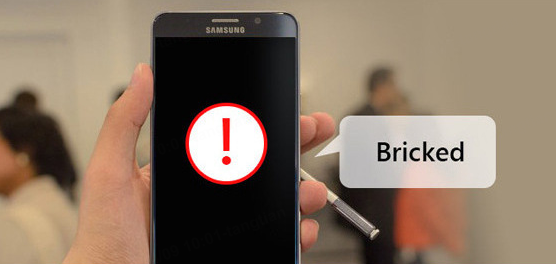
A black screen on a Samsung phone can be frustrating and may indicate various issues ranging from simple battery depletion to more complex hardware or software problems. This article provides a comprehensive guide on how to troubleshoot and potentially fix the black screen issue on your Samsung device.
Understanding the Causes
Before diving into the solutions, it’s essential to understand the possible causes of a black screen on a Samsung phone. These can include:
- Battery Depletion: If the battery is completely drained, the phone might not turn on.
- Charging Issues: A faulty charger or dirty charging port can prevent the phone from charging.
- Software Glitches: Temporary software issues can cause the screen to remain black.
- Hardware Problems: Physical damage to the screen or internal components can lead to a black screen.

Troubleshooting Steps
Basic Checks
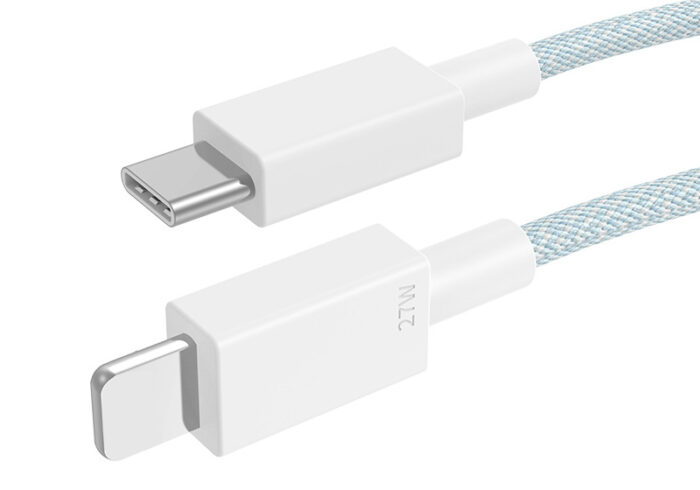
- Charge Your Phone: Ensure your phone is charged. Sometimes, a completely drained battery can cause the screen to remain black. Use a different charger and cable if possible to rule out any issues with your current charging setup.
- Clean the Charging Port: Dirt or debris in the charging port can prevent your phone from charging properly. Use a soft brush or a toothpick to gently clean out any obstructions.
Advanced Fixes
Hard Reset
If basic checks don’t work, performing a hard reset can resolve software-related issues. However, this will erase all data on your phone, so ensure you back up your data if possible.
- Step 1: Press and hold both the Volume Down and Power buttons until the Samsung logo appears.
- Step 2: Release the buttons and navigate to the “Wipe data/factory reset” option using the Volume buttons.
- Step 3: Select the option with the Power button and confirm the reset.
Booting into Safe Mode
If the issue is caused by a problematic app, booting into safe mode can help identify and resolve the problem.
- Step 1: Turn off your phone and press the Power button until the Samsung logo appears.
- Step 2: Release the Power button and immediately press and hold the Volume Down button.
- Step 3: In safe mode, uninstall any recently installed apps that might be causing the issue.
Using Recovery Mode
Clearing the cache partition in recovery mode can also help resolve software issues.
- Step 1: Turn off your phone and press the Volume Up, Power, and Bixby buttons simultaneously.
- Step 2: Release the buttons when the recovery mode menu appears.
- Step 3: Use the Volume buttons to navigate to “Wipe cache partition” and select it with the Power button.
Advanced Tools
If the above methods don’t work, using tools like DroidKit can help repair system issues.
- Download and Install DroidKit: Get the software from the official website.
- Connect Your Phone: Connect your Samsung phone to your computer.
- Start the Repair Process: Follow the on-screen instructions to download the necessary firmware and repair your device.
When to Seek Professional Help
If none of the troubleshooting steps resolve the issue, it’s likely that there’s a hardware problem. In such cases, visiting a Samsung authorized service center or contacting Samsung support is recommended.
Conclusion
Fixing a black screen on a Samsung phone often involves a combination of basic checks and more advanced troubleshooting techniques. By following the steps outlined in this guide, you should be able to identify and potentially resolve the issue. If the problem persists, professional assistance may be necessary.
How to Purchase:https://looperbuy.com/search?keywords=samsung+phone+screen+is+black
Frequently Asked Questions
- Q: Why does my Samsung phone screen turn black?
A: The screen can turn black due to a variety of reasons including battery depletion, charging issues, software glitches, or hardware problems. - Q: How do I fix a black screen on my Samsung phone?
A: Start by charging your phone, cleaning the charging port, and performing a hard reset if necessary. If these steps don’t work, consider using recovery mode or seeking professional help. - Q: Can a black screen on a Samsung phone be fixed without losing data?
A: In some cases, yes. If the issue is due to a software glitch, booting into safe mode or using recovery mode might resolve the problem without data loss. However, a hard reset will erase all data. - Q: What if my Samsung phone’s screen is physically damaged?
A: If the screen is physically damaged, it may need to be replaced. Contact a Samsung authorized service center for assistance. - Q: How long does it take to fix a black screen on a Samsung phone?
A: The time it takes to fix a black screen can vary depending on the cause. Basic checks might take a few minutes, while more complex repairs could take several hours or require professional assistance.