In today’s digital world, the efficient transfer of data is crucial for both personal and professional tasks. Among the various tools that facilitate this process, the USB-A data transfer cable stands out as a reliable and widely used solution. This comprehensive guide delves into the intricacies of USB-A data transfer cables, providing you with valuable insights to make informed decisions when selecting and using these cables.
Understanding USB-A Data Transfer Cables
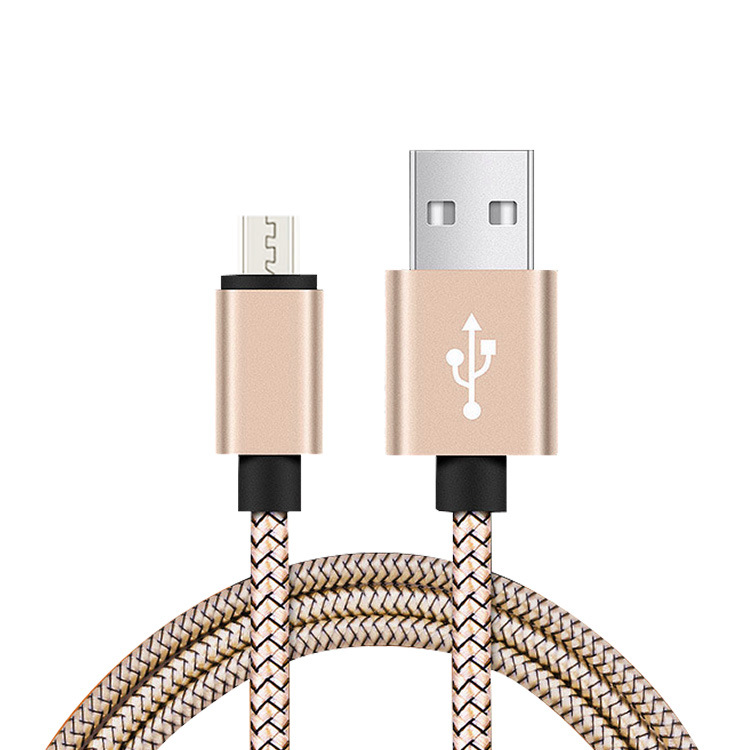
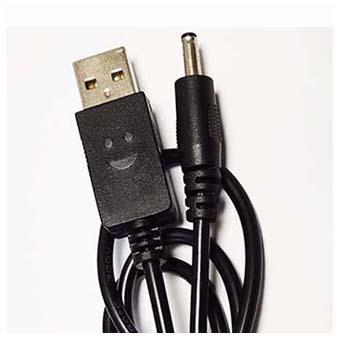
USB-A data transfer cables are a type of Universal Serial Bus cable that has become a standard for connecting devices to computers. The USB-A connector, with its rectangular shape and asymmetrical design, is instantly recognizable. These cables are designed to transmit data and power between devices, enabling tasks such as transferring files, charging devices, and connecting peripherals like printers and external hard drives.
The USB-A cable consists of four wires: two for power and two for data transmission. The power wires carry a voltage of 5V, sufficient for charging small devices like smartphones and tablets, while the data wires use a serial communication protocol to transmit data between devices. This simple yet effective design has made USB-A cables a staple in our tech-driven lives.
Types of USB-A Data Transfer Cables
- Standard USB-A Cable: This is the most common type, with a rectangular-shaped connector on both ends. It is used to connect devices like flash drives and keyboards to computers. Standard USB-A cables typically support USB 2.0, offering data transfer speeds of up to 480Mbps.
- USB-A to USB-B Cable: Featuring a rectangular-shaped connector on one end and a square-shaped connector on the other, this cable is commonly used to connect peripherals like printers and scanners to computers. USB-A to USB-B cables can support both USB 2.0 and USB 3.0 standards, with the latter providing faster data transfer rates of up to 5Gbps.
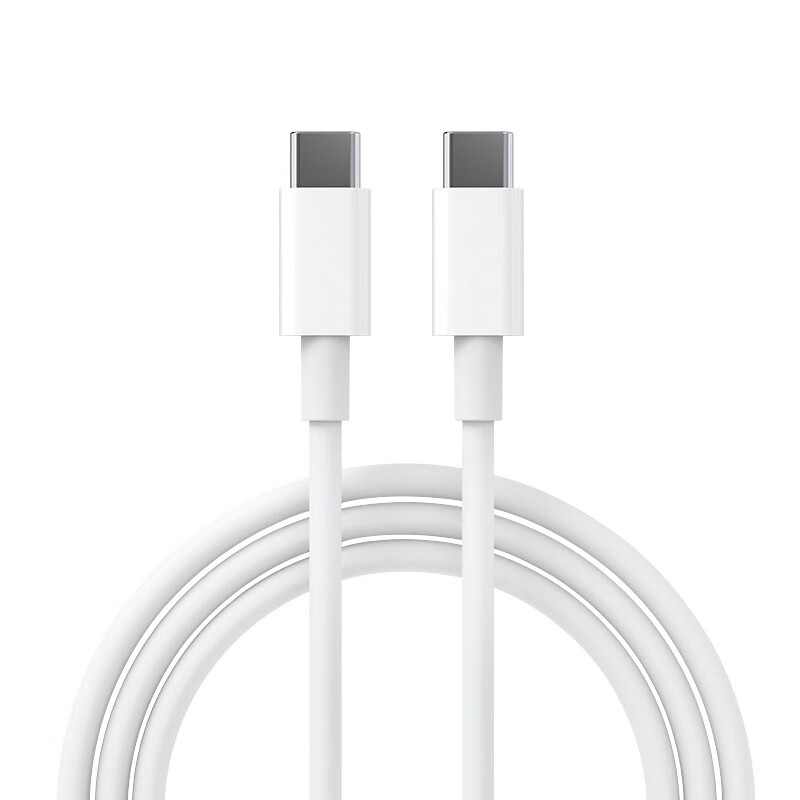
- USB-A to USB-C Cable: With a rectangular-shaped connector on one end and a reversible oval-shaped connector on the other, this cable allows for connections between newer devices with USB-C ports and older devices with USB-A ports. USB-A to USB-C cables are available in various speeds, including USB 3.0 and USB 3.1, making them suitable for a wide range of data transfer needs.
Data Transfer Speeds of USB-A Cables
USB-A cables come in different versions, each offering varying data transfer speeds to meet different demands:
- USB 1.0 (Low Speed): With a data transfer rate of 1.5Mbps, it is suitable for basic tasks but is now largely obsolete.
- USB 1.1 (Full Speed): Offering a speed of 12Mbps, it represents an improvement over USB 1.0 but is still limited for modern applications.
- USB 2.0 (High Speed): Capable of data transfer rates up to 480Mbps, USB 2.0 is widely used for everyday tasks like transferring documents and photos.
- USB 3.0 (SuperSpeed): Supporting data transfer rates of up to 5Gbps, USB 3.0 is significantly faster than USB 2.0, making it ideal for transferring large files and streaming videos.
- USB 3.1 (SuperSpeed+): Providing speeds of up to 10Gbps, it is suitable for high-data applications such as media editing and large file storage.
- USB 3.2 (SuperSpeed+ 20Gbps): With an impressive speed of 20Gbps, it caters to professional workflows and power users who frequently transfer large volumes of data.
The Anatomy of a USB-A Cable
A typical USB-A cable comprises the following components:
- USB-A Connector: This is the rectangular-shaped plug that connects to the host device, such as a computer or wall charger. Its sturdy and durable design ensures secure connections for reliable data transfer and power delivery.
- Other Connectors: Depending on the type of USB-A cable, the other end may have a USB-B connector, USB-C connector, or another type of connector suitable for connecting to various peripheral devices.
- Power Wires: Carrying a voltage of 5V, these wires are responsible for charging devices or powering peripherals.
- Data Wires: Utilizing a serial communication protocol, these wires transmit data between devices at varying speeds based on the USB standard supported by the cable.
Compatibility and Usage of USB-A Data Transfer Cables
One of the key advantages of USB-A data transfer cables is their broad compatibility with a wide range of devices. They can be used to connect computers to external storage devices like USB flash drives and external hard drives, enabling quick and easy transfer of large files. Additionally, they are compatible with printers, scanners, digital cameras, and other peripherals, allowing for seamless integration of these devices into your computing setup.
For charging purposes, standard USB-A cables can supply up to 500mA of power, which is sufficient for charging small devices such as smartphones and tablets. However, for larger devices like laptops that require more power to charge, a USB-A cable specifically designed for charging with Power Delivery (PD) may be necessary. These cables can supply up to 100W of power, making them suitable for charging such power-hungry devices.
When it comes to data transfer, the speed of the USB-A cable is crucial. If you need to transfer large files quickly, it is advisable to use a USB 3.0 or higher version cable. These faster cables not only save time but also ensure efficient and reliable data transfer with minimal errors and data loss.
How to Choose the Right USB-A Data Transfer Cable
Selecting the appropriate USB-A data transfer cable depends on several factors:
- Device Compatibility: Ensure that the cable type matches the charging port of your device. For example, if you have a device with a USB-C port, a USB-A to USB-C cable would be suitable.
- Charging Needs: If fast charging is important to you, consider USB-A cables with Power Delivery capabilities. They can provide higher wattage charging, reducing the time it takes to fully charge your devices.
- Data Transfer Requirements: If you frequently transfer large files or work with applications that demand high-speed data transfer, opt for USB 3.0 or higher version cables. They offer significantly faster data transfer rates compared to older versions like USB 2.0.
- Durability and Reliability: Look for cables made from high-quality materials with reinforced connectors to ensure long-lasting performance. Avoid cables that are prone to fraying or have weak connectors, as they may fail over time and disrupt your data transfer or charging processes.
Future-Proofing Your USB-A Data Transfer Cable Investment
While USB-C is gaining popularity and becoming the new standard for many devices due to its faster data transfer speeds, higher power delivery capabilities, and reversible connector design, USB-A cables still have their place in today’s tech landscape. Many existing devices continue to use USB-A ports, and having compatible cables ensures you can utilize these devices without any issues.
Moreover, many USB-A to USB-C cables are designed to be backward compatible with USB 2.0 and USB 3.0 standards. This means that even as you adopt newer devices with USB-C ports, your USB-A data transfer cables can still serve as a bridge between older and newer devices, providing a seamless transition and maximizing the utility of your existing cables.

Taking Care of Your USB-A Data Transfer Cables
To ensure the longevity and optimal performance of your USB-A data transfer cables, follow these care tips:
- Avoid Overstretching or Bending: Excessive stretching or bending of the cable can damage the internal wires, leading to potential data transfer issues or even complete cable failure. Handle the cable gently and avoid applying unnecessary force.
- Keep Connectors Clean: Dirt, dust, and other debris can accumulate on the connectors over time, affecting the cable’s ability to establish a secure connection. Periodically clean the connectors using a soft, dry cloth or a specialized connector cleaning tool.
- Store Properly: When not in use, store your USB-A data transfer cables in a cool, dry place, preferably coiled loosely rather than tightly wrapped. This helps prevent physical damage to the cable and maintains its flexibility and integrity over time.
Conclusion
USB-A data transfer cables remain a vital tool in our digital toolkit, offering reliable and efficient data transfer and charging capabilities for a wide range of devices. By understanding the different types of USB-A cables, their data transfer speeds, and how to choose the right one based on your specific needs, you can ensure smooth and efficient connectivity between your devices. Whether you’re transferring files, charging your gadgets, or connecting peripherals, a quality USB-A data transfer cable is an essential component that enhances your productivity and simplifies your digital workflow. As technology continues to evolve, these cables will likely adapt to new standards and requirements, continuing to serve as a backbone for our connected world.
How to Purchase:https://looperbuy.com/search?keywords=usb+a+data+transfer+cable
Frequently Asked Questions
Q: Can I use a USB-A data transfer cable to charge my device? A: Yes, you can use a USB-A data transfer cable to charge your device. However, the charging speed may vary depending on the cable and your device’s requirements. Standard USB-A cables can supply up to 500mA of power, which is sufficient for charging small devices like smartphones and tablets. For faster charging, especially for larger devices like laptops, consider using a USB-A cable with Power Delivery (PD) capabilities.
Q: What is the maximum length of a USB-A cable? A: The maximum length of a USB-A cable is generally 5 meters (16.4 feet). However, it is recommended to use cables that are no longer than 3 meters (9.8 feet) to ensure optimal performance and minimize signal degradation. Using a cable that is too long can result in errors and data loss during data transfer.
Q: Are USB-A cables compatible with USB-C ports? A: USB-A cables can be used with USB-C ports through the use of adapters or cables that have a USB-A connector on one end and a USB-C connector on the other. These USB-A to USB-C cables allow for compatibility between devices with different USB connector types, enabling data transfer and charging between such devices.
Q: How can I determine the data transfer speed of a USB-A cable? A: The data transfer speed of a USB-A cable is determined by the USB standard it supports. You can check the cable’s specifications or look for markings on the cable itself, such as “USB 2.0” or “USB 3.0”, to identify its supported standard and corresponding data transfer speed. Additionally, using a tool like POWER-Z can help measure the cable’s actual data transfer speed and other performance metrics.
Q: Can I use a damaged USB-A data transfer cable? A: It is not advisable to use a damaged USB-A data transfer cable. A damaged cable can lead to poor connections, data transfer errors, and even pose safety risks such as electrical shorts. If you notice any physical damage to the cable, such as fraying, cracks, or bent connectors, it is best to replace it with a new cable to ensure safe and reliable operation.
Hot Tags: Usb A Data Transfer Cable; Usb A Cable; Usb Data Transfer; Data Transfer Cable; Usb Cable; Usb A To Usb C Cable; Usb 3.0 Cable; Usb 2.0 Cable; Usb Power Cable; Usb Charging Cable