Table of Contents
Introduction: When Your Samsung Screen Goes Dark—Troubleshooting Guide
A dark Samsung phone screen can be frustrating, whether it’s a sudden dimming during use or a persistent issue that disrupts daily tasks. From missed calls to unread messages, a dark screen undermines your phone’s functionality. But before rushing to a repair shop, many dimming issues are fixable with simple adjustments or troubleshooting. This article explores the common causes of a dark Samsung screen, step-by-step diagnosis methods, and practical solutions to restore brightness—so you can get back to using your phone without frustration.
Why Is My Samsung Phone Screen Dark? Common Causes
A dark screen isn’t always a sign of a broken device. Often, it stems from temporary or fixable issues. Let’s break down the most common culprits:
1. Automatic Brightness Settings
Samsung phones use adaptive brightness, which adjusts based on ambient light. If you’re in a dimly lit room, the screen may dim automatically to reduce eye strain. This is normal, but it can feel like a “dark screen” issue if you’re unaware of the feature.
2. Low Battery or Power-Saving Mode
When your phone’s battery is critically low (below 5%), Samsung activates power-saving mode, which dims the screen to conserve energy. This is a deliberate feature, not a malfunction.
3. Screen Brightness Settings
You might have accidentally lowered the brightness manually. Swipe down from the top of the screen to check the brightness slider—if it’s set to a low level, the screen will appear dim.
4. Hardware Issues: Screen or Battery Problems
Older phones or those with physical damage (e.g., drops, water exposure) may experience dimming due to a failing screen backlight or a degraded battery. A damaged battery can’t supply enough power to the screen, causing it to dim.
5. Software Glitches
Temporary bugs in the operating system (One UI) can cause the screen to dim unexpectedly. This might happen after a software update, app installation, or prolonged use.
6. Environmental Factors
Extreme temperatures (below 32°F or above 95°F) can affect battery performance and screen brightness. Dust or debris blocking the screen’s sensors (like the ambient light sensor) can also trick the phone into dimming the screen.
How to Diagnose the Issue: Step-by-Step Troubleshooting
Before jumping to conclusions, follow these steps to identify the root cause of your dark screen:
1. Check the Brightness Slider
Swipe down from the top of the screen to access the quick settings panel. Locate the brightness slider and move it to the right. If the screen brightens, the issue was likely a low manual setting.
2. Verify Battery Level
Check the battery percentage (swipe down or go to Settings > Battery). If it’s below 5%, charge the phone—even a 10-minute charge can boost the battery enough to restore brightness.
3. Disable Auto-Brightness Temporarily
Go to Settings > Display > Brightness. Toggle off “Adaptive Brightness” and set the slider to a high level. If the screen brightens, the auto-brightness feature was the culprit.
4. Restart Your Phone
A simple restart can resolve temporary software glitches. Hold the power button, select “Restart,” and check if the screen returns to normal.
5. Inspect for Physical Damage
Look for cracks, scratches, or water damage on the screen. If the screen is physically damaged, the backlight or internal components may be compromised.
6. Test in Safe Mode
Boot your phone into Safe Mode (hold the power button, then long-press “Power Off” until “Safe Mode” appears). If the screen is bright in Safe Mode, a third-party app is likely causing the issue. Uninstall recently downloaded apps to find the culprit.
Fixing a Dark Samsung Phone Screen: Solutions for Every Cause
Once you’ve identified the cause, here’s how to fix it:
1. Adjust Brightness Settings
If the screen is dim due to low brightness, simply swipe down and move the brightness slider to your preferred level. For auto-brightness, toggle it back on if you prefer adaptive control.
2. Charge Your Phone
If low battery is the issue, plug your phone into a charger. Avoid using it while charging, as this can drain the battery faster. For older phones, consider replacing the battery if it no longer holds a charge.
3. Update Software
Software glitches often resolve with updates. Go to Settings > Software Update and install the latest version of One UI. This can fix bugs causing unexpected dimming.
4. Reset Display Settings
If the screen remains dim, reset display settings to default:
- Go to Settings > Display.
- Select “Reset Display Settings” (this won’t delete personal data).
5. Repair or Replace Hardware
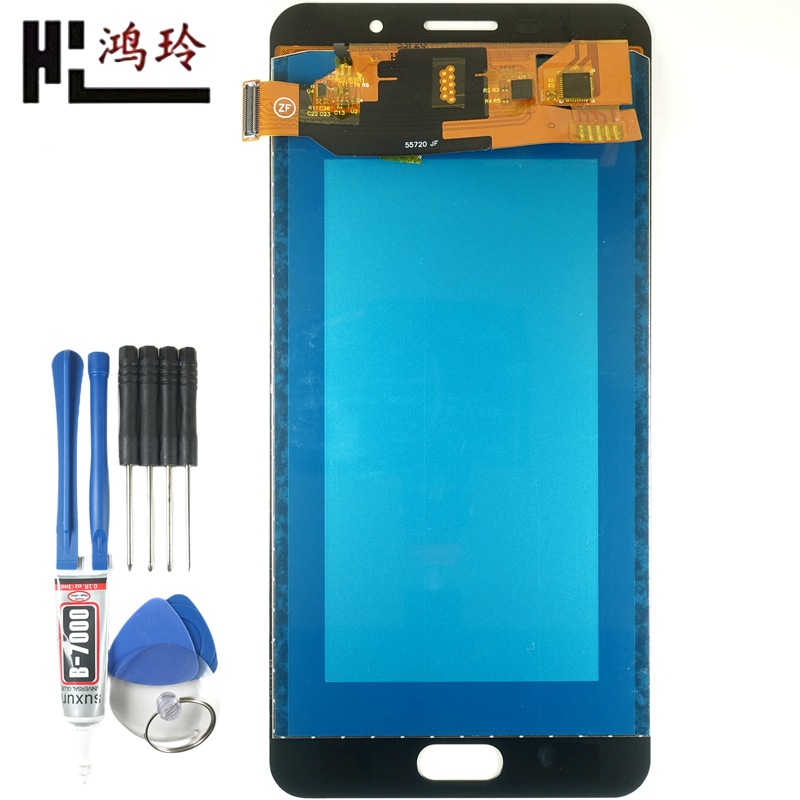
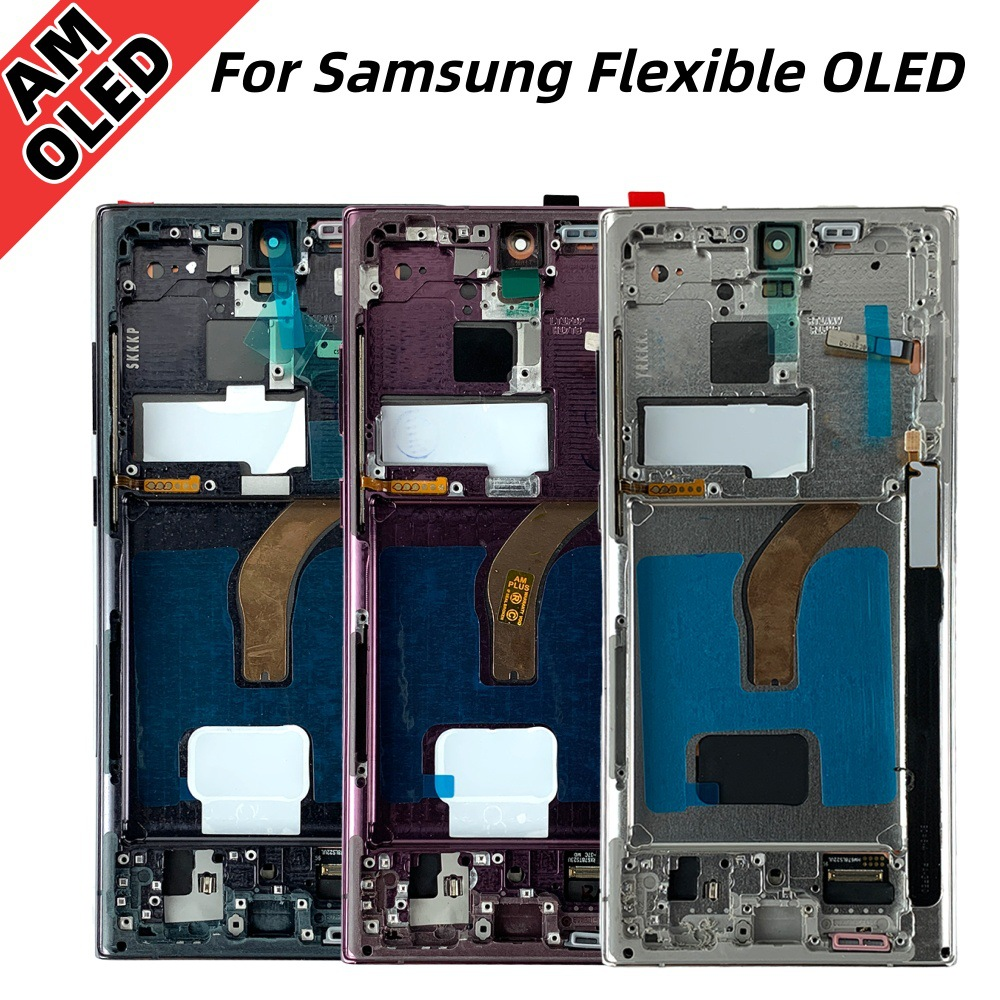
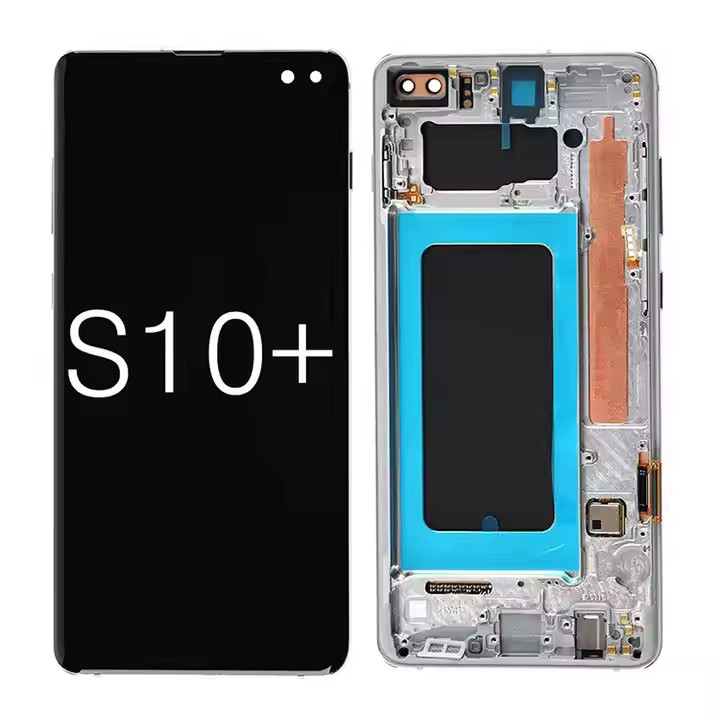
If the screen is physically damaged or the backlight is faulty, contact Samsung Support or visit an authorized service center. For older models, screen replacement may be more cost-effective than a new phone.
6. Avoid Extreme Temperatures
Keep your phone away from extreme heat (e.g., direct sunlight) or cold (e.g., leaving it in a car overnight). Use a protective case to shield it from dust and debris.
Preventing Future Screen Darkness: Tips for Long-Term Care
To avoid future dimming issues, follow these preventive measures:
1. Regularly Clean Sensors
Dust or dirt on the ambient light sensor (located near the front camera) can trick the phone into dimming the screen. Use a soft cloth to wipe the sensor area gently.
2. Avoid Overcharging
Overcharging can degrade the battery over time, leading to inconsistent power delivery. Unplug your phone once it’s fully charged.
3. Use a Screen Protector
A high-quality screen protector can shield against scratches and cracks, reducing the risk of physical damage that affects brightness.
4. Update Apps and Software
Keep apps and the operating system updated to avoid bugs that cause unexpected dimming.
5. Monitor Battery Health
Check battery health periodically (Settings > Battery > Battery Health). If the maximum capacity is below 80%, consider replacing the battery.
Conclusion: Regaining Control of Your Samsung Screen
A dark Samsung phone screen is rarely a permanent problem. Whether it’s caused by auto-brightness, low battery, or a software glitch, most issues can be resolved with simple adjustments or troubleshooting. By understanding the root cause—whether through checking settings, charging the battery, or updating software—you can quickly restore your screen’s brightness. For persistent issues, professional repair or hardware replacement may be necessary, but even then, modern Samsung devices are designed for easy fixes. The key takeaway? Don’t panic—take a breath, troubleshoot step-by-step, and your screen will be back to its bright self in no time. Remember, regular maintenance and mindful usage can go a long way in preventing future dimming, keeping your Samsung phone reliable and vibrant for years to come.
How to purchase: https://looperbuy.com/search?keywords=my+samsung+phone+screen+is+dark&globalType=1688
Frequently Asked Questions (FAQs)
1. Why does my Samsung screen dim when I’m not using it? This is likely due to auto-brightness or the screen timeout setting. If the phone is idle, it may dim to save battery. Adjust the “Screen Timeout” in Settings > Display to keep it on longer.
2. Can a dark screen be fixed without replacing the screen? Yes, if the issue is due to software, settings, or a weak battery. Only physical damage (e.g., a cracked backlight) requires screen replacement.
3. My phone is new—why is the screen dark? New phones may have calibration issues. Try adjusting brightness settings, updating software, or contacting Samsung Support for a replacement if the problem persists.
4. Does using a dark theme make the screen dimmer? Dark themes use less power but shouldn’t make the screen significantly dimmer. If your screen is dark with a dark theme, check brightness settings or disable auto-brightness.
5. How much does it cost to fix a dark Samsung screen? Costs vary by model and issue. A screen replacement for a mid-range Samsung phone typically ranges from 100-200, while battery replacement is cheaper (50-100). Always use authorized service centers for genuine parts.
Hot Tags: Samsung phone dark screen; Screen brightness issues; Mobile repair tips; Battery problems; Android software glitches; Screen protection; Phone maintenance; Auto-brightness settings; Hardware vs software issues; Samsung support