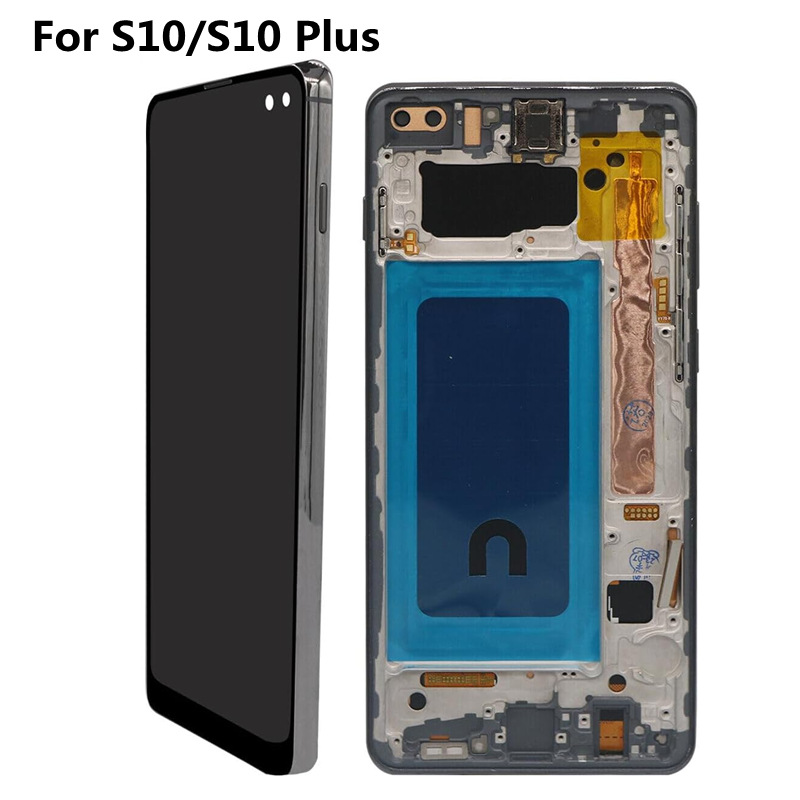
Samsung smartphones are renowned for their high-quality displays, vibrant colors, and advanced technology. However, users occasionally encounter a frustrating problem: a green screen. This issue can manifest in various ways, from a faint green tint to a complete green display, often referred to as the “green screen of death.” In this article, we will explore the causes of the green screen issue, potential fixes, and preventive measures to keep your Samsung phone functioning optimally.
Table of Contents
What is the Green Screen Issue?
The green screen issue on Samsung phones can be a significant concern for users. It typically presents itself in two main forms: a green tint that overlays the display or a complete green screen that obscures the user interface. This problem can arise suddenly and can be caused by various factors, including software glitches, hardware malfunctions, and user settings.
Symptoms of the Green Screen Issue
Users may notice several symptoms associated with the green screen issue, including:
- A faint green tint on the display, especially noticeable against white or light backgrounds.
- A complete green screen that obscures the user interface, making it difficult to use the phone.
- Flickering or distortion of colors, particularly when viewing images or videos.
- The green tint appearing intermittently, often triggered by specific actions, such as opening certain apps or adjusting brightness.
Understanding these symptoms is crucial for diagnosing the problem and determining the appropriate course of action.

Causes of the Green Screen Issue
1. Software Glitches
One of the most common causes of the green screen issue is software glitches. These glitches can occur after a software update, app installation, or even during regular use. Sometimes, a bug in the operating system can lead to display issues, including a green tint or complete green screen.
2. Hardware Problems
Physical damage to the phone can also lead to the green screen issue. Samsung devices, particularly those with AMOLED displays, are sensitive to impact and moisture. If the phone has been dropped or exposed to water, it may suffer from hardware malfunctions that affect the display.
3. Display Settings
Incorrect display settings can contribute to the green screen issue. For example, if the color calibration is off or if the brightness is set too low, users may notice a green tint. Additionally, enabling certain features, such as dark mode, can sometimes exacerbate the problem.
4. Corrupted Files
Corrupted files or apps can interfere with the phone’s display, leading to color distortions. If a specific app is causing the issue, it may be necessary to uninstall or update that app to resolve the problem.
5. Third-Party Apps
Some third-party applications may not be compatible with your device, causing display issues. If the green screen appears after installing a new app, it may be worth investigating whether that app is the source of the problem.
Troubleshooting the Green Screen Issue
Step 1: Restart Your Device
The first step in troubleshooting any display issue is to restart your device. This simple action can resolve temporary software glitches that may be causing the green screen.
- Press and hold the power button until the power menu appears.
- Select “Restart” and wait for the device to reboot.
Step 2: Boot into Safe Mode
If the green screen persists after restarting, booting your device into safe mode can help determine if a third-party app is causing the issue. Safe mode disables all third-party applications, allowing you to see if the problem persists.
- Press and hold the power button until the power menu appears.
- Tap and hold the “Power off” option until the “Safe mode” prompt appears.
- Tap “OK” to reboot into safe mode.
If the green screen disappears in safe mode, a third-party app is likely the culprit. You can then uninstall recently installed apps to identify the problematic one.
Step 3: Clear Cache Partition
Corrupted cache data can lead to various issues, including display problems. Clearing the cache partition can help resolve these issues without affecting your personal data.
- Turn off your Samsung phone.
- Press and hold the volume up and power buttons simultaneously until the Samsung logo appears.
- Use the volume buttons to navigate to “Wipe cache partition” and select it using the power button.
- Confirm the action and wait for the process to complete.
- Reboot your device.
Step 4: Adjust Display Settings
Sometimes, adjusting the display settings can help alleviate the green tint. Here are a few settings to consider:
- Brightness: Increase the brightness level to see if it reduces the green tint.
- Color Mode: Change the color mode from “Dark” to “Light” in the display settings. This can help minimize the appearance of the green tint.
- Color Correction: If you have enabled color correction, try disabling it to see if it resolves the issue.
Step 5: Update Software
Keeping your device’s software up to date is crucial for optimal performance. Software updates often include bug fixes and improvements that can resolve display issues.
- Go to “Settings” and select “Software update.”
- Tap “Download and install” to check for available updates.
- Follow the prompts to install any updates.
Step 6: Factory Reset
If none of the above steps resolve the green screen issue, a factory reset may be necessary. This action will erase all data on your device, so be sure to back up important files before proceeding.
- Go to “Settings” and select “General management.”
- Tap “Reset” and then “Factory data reset.”
- Follow the prompts to complete the reset.
Step 7: Seek Professional Help
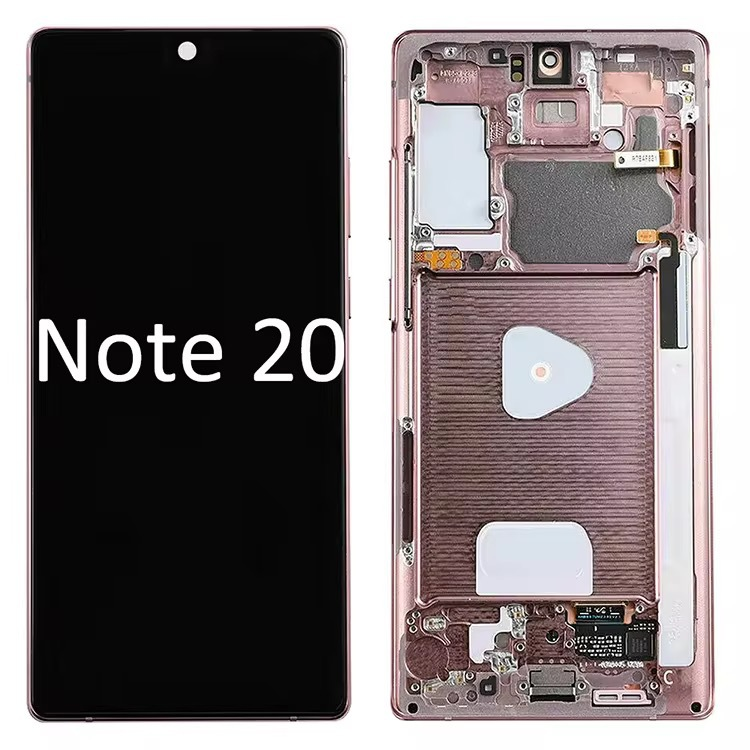
If the green screen issue persists after a factory reset, it may indicate a hardware problem. In this case, it is advisable to seek professional help from a Samsung service center or an authorized repair technician. They can diagnose the issue and recommend appropriate repairs.
Preventive Measures
1. Use a Screen Protector
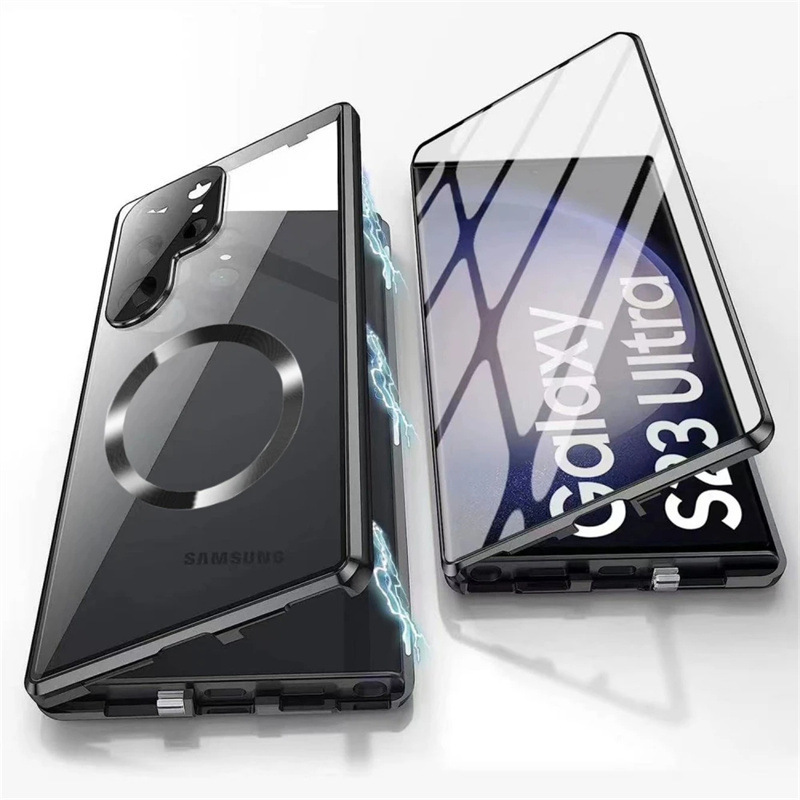
Investing in a high-quality screen protector can help prevent physical damage to your device’s display. A screen protector can absorb impact and reduce the risk of cracks or other damage that could lead to display issues.
2. Avoid Extreme Temperatures
Exposing your phone to extreme temperatures can affect its performance and lead to display problems. Avoid leaving your device in hot or cold environments, such as a car on a sunny day or outside in freezing temperatures.
3. Keep Software Updated
Regularly updating your device’s software can help prevent bugs and issues that may lead to display problems. Enable automatic updates to ensure you always have the latest software.
4. Be Cautious with Third-Party Apps
When downloading apps, be cautious and only install those from reputable sources. Some third-party apps may not be compatible with your device and can cause display issues.
5. Regular Maintenance
Perform regular maintenance on your device, such as clearing cache data and uninstalling unused apps. This can help keep your phone running smoothly and reduce the risk of software-related display issues.
Understanding the Long-Term Effects of Ignoring the Green Screen Issue
Ignoring the green screen issue can lead to several long-term consequences, including:
1. Permanent Display Damage
If the green screen is caused by hardware issues, continued use of the device may lead to permanent damage to the display. This can result in costly repairs or the need for a complete replacement of the device.
2. Decreased Functionality
A persistent green screen can hinder your ability to use the phone effectively. This can lead to frustration and decreased productivity, especially if you rely on your device for work or communication.
3. Increased Repair Costs
Delaying repairs can lead to more extensive damage, resulting in higher repair costs. Addressing the issue promptly can save you money in the long run.
4. Impact on Resale Value
If you plan to sell or trade in your device, a green screen issue can significantly decrease its resale value. Potential buyers may be deterred by visible display problems, making it harder to sell the device.
Conclusion
The green screen issue on Samsung phones can be frustrating, but understanding its causes and troubleshooting steps can help you resolve the problem effectively. By following the steps outlined in this article, you can identify the source of the issue and take appropriate action to restore your device’s display. Additionally, implementing preventive measures can help you avoid similar problems in the future.
How to purchase:Online B2B sourcing platform, China purchase, Chinese suppliers – LooperBuy
Frequently Asked Questions
1. What causes the green screen issue on Samsung phones?
The green screen issue can be caused by software glitches, hardware problems, incorrect display settings, corrupted files, or incompatible third-party apps.
2. How can I fix the green screen on my Samsung phone?
You can try restarting your device, booting into safe mode, clearing the cache partition, adjusting display settings, updating software, performing a factory reset, or seeking professional help.
3. What should I do if the green screen issue persists after a factory reset?
If the green screen issue continues after a factory reset, it may indicate a hardware problem. In this case, it is advisable to seek professional help from a Samsung service center.
4. Can a screen protector help prevent the green screen issue?
While a screen protector cannot prevent software-related issues, it can help protect your device from physical damage that may lead to display problems.
5. How can I prevent the green screen issue from occurring in the future?
To prevent the green screen issue, use a screen protector, avoid extreme temperatures, keep your software updated, be cautious with third-party apps, and perform regular maintenance on your device.