Table of Contents
Understanding the Issue
Having your Redmi phone stuck on the boot screen can be a source of frustration. This problem can arise from a variety of causes, including software glitches, hardware issues, and more. In this article, we will explore the common reasons behind this issue and provide effective solutions to help you get your device up and running again.
Common Causes of Redmi Phone Stuck on Boot Screen
Software – Related Issues
- System File Corruption :Corrupted system files can prevent the phone from booting up properly. This can be caused by various factors such as improper shutdown, software conflicts, or malware infections.
- Failed Software Updates :A failed or interrupted software update can leave the phone in an unstable state, resulting in it getting stuck on the boot screen.
- Third – Party Applications :Incompatible or poorly coded third – party apps can sometimes interfere with the system processes and cause booting issues.
Hardware – Related Issues
- Faulty Battery :A damaged or faulty battery may not supply adequate power to the phone during the booting process.
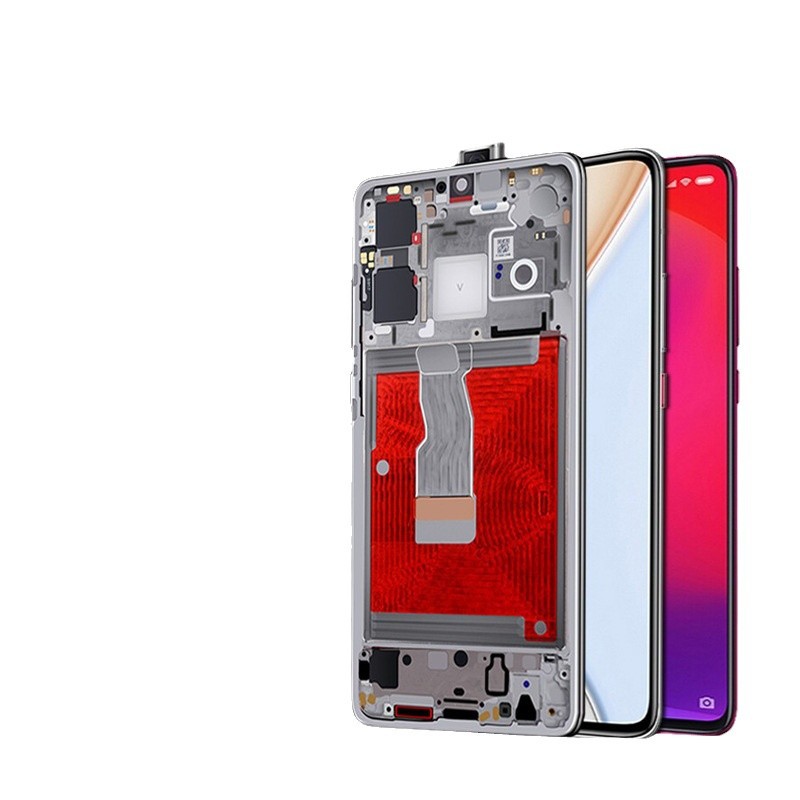
- Defective Charging Port or Components :If the charging port is damaged or the phone’s charging components are faulty, it can affect the power supply and cause booting problems.
- Damaged SIM Card Slot :In some cases, a short circuit in the SIM card slot can cause the phone to get stuck on the boot screen.
- Memory Card Issues :A faulty or incompatible memory card can sometimes lead to booting problems. If the memory card is damaged or has errors, it may prevent the phone from booting up normally.
Effective Solutions to Fix Redmi Phone Stuck on Boot Screen
Basic Troubleshooting Steps
- Perform a Soft Reset :A soft reset can help clear temporary system data and potentially resolve software glitches. To perform a soft reset, press and hold the power button for about 10 – 15 seconds until the device restarts.
- Drain the Battery Completely :If you’re unable to power off or restart your phone, let the battery drain completely. This can help resolve certain booting issues caused by power management problems.
Advanced Troubleshooting Methods
- Boot into Safe Mode :Booting into safe mode allows the phone to start with only essential system processes running. This can help you determine if a third – party app is causing the booting issue. To boot into safe mode, power off the device, then press and hold the power button again to turn it back on. As the device begins to boot up, press and hold the volume down button until the lock screen appears. If the device boots successfully in safe mode, you can then uninstall recently downloaded apps or update system software to resolve the issue.
- Clear Cache Partition :Clearing the cache partition can resolve issues caused by corrupt temporary data. To do this, power off your phone, then press and hold the Volume Up button and the Power button simultaneously until the Mi logo appears. Release the Power button but continue holding the Volume Up button until the recovery mode menu appears. Use the Volume buttons to navigate to “Wipe Cache Partition” and select it using the Power button. After the process completes, select “Reboot system now.” This method doesn’t delete personal data but can effectively fix some booting problems.
- Reboot Using Recovery Mode :This method can perform a soft reset of your mobile. Press the Volume Up + Power Button on your mobile for 7 – 10 Seconds to boot into recovery mode. If you receive a Recovery mode menu, use the Volume keys to navigate and the Power button to confirm the selection. If your phone has Stock Recovery, you can choose “Reboot” and confirm it using the power key button. If you have TWRP custom recovery installed, you can select “Boot” on the Home screen and choose “System” to boot into Normal OS.
- Factory Reset :If other methods fail, performing a factory reset can be a last – resort solution. However, this will erase all data on your device. To perform a factory reset, access Recovery Mode as described earlier, then use the Volume buttons to navigate to “Wipe Data / Factory Reset,” select “Wipe All Data,” and confirm. Once the reset is complete, select “Reboot system now.” Remember to back up your important data before performing a factory reset.
Hardware Repair Solutions
- Check and Repair the Charging Port :If the charging port is damaged, you may need to have it repaired or replaced by a professional service center. Inspect the port for any visible damage or debris and clean it if necessary.
- Replace a Faulty Battery :If the battery is damaged or not functioning properly, replacing it with a new, high – quality battery can often resolve booting issues caused by power problems.
- Inspect and Repair the SIM Card Slot :If a short circuit in the SIM card slot is suspected, remove the SIM card from the slot and see if the phone can boot into the system without it. If it can, the SIM card slot may need to be repaired.
Conclusion
A Redmi phone getting stuck on the boot screen can be caused by various factors, ranging from software glitches to hardware issues. By systematically trying out the solutions provided in this article, you can often resolve the problem and get your device back to normal operation. Start with basic troubleshooting steps and gradually move on to more advanced methods. If all else fails, don’t hesitate to seek professional repair services.
How to Purchase:https://looperbuy.com/search?keywords=redmi+phone+stuck+on+boot+screen
Frequently Asked Questions
Q:Why does my Redmi phone get stuck on the boot screen?
A Redmi phone may get stuck on the boot screen due to several reasons, including system file corruption, failed software updates, third – party application conflicts, faulty battery, defective charging port or components, damaged SIM card slot, or memory card issues.
Q:How can I fix the boot screen issue without losing data?
You can try methods such as performing a soft reset, draining the battery completely, booting into safe mode, or clearing the cache partition. These methods usually won’t result in data loss. However, if these methods don’t work, you may need to consider a factory reset, which will erase all data on your device.
Q:Will a factory reset delete all my data?
Yes, a factory reset will erase all data on your device, including apps, photos, videos, and other personal files. It’s important to back up your important data before performing a factory reset.
Q:Can hardware issues cause the phone to get stuck on the boot screen?
Yes, hardware problems such as a faulty battery, defective charging port or components, damaged SIM card slot, or memory card issues can cause the phone to get stuck on the boot screen. If software – related solutions don’t resolve the issue, it’s advisable to check for potential hardware problems and have them repaired by a professional service center.
Q:How can I prevent my Redmi phone from getting stuck on the boot screen in the future?
To prevent this issue from happening again, ensure that you install software updates promptly, avoid installing untrusted third – party applications, regularly back up your data, and take good care of your phone’s hardware components, such as the battery and charging port.
Hot Tags: Redmi Phone Stuck On Boot Screen; Redmi Boot Screen Issue; Redmi Phone Boot Loop; Redmi Software Troubleshooting; Redmi Hardware Issues; Redmi Factory Reset; Redmi Recovery Mode; Redmi Cache Partition; Redmi Safe Mode; Redmi System Update